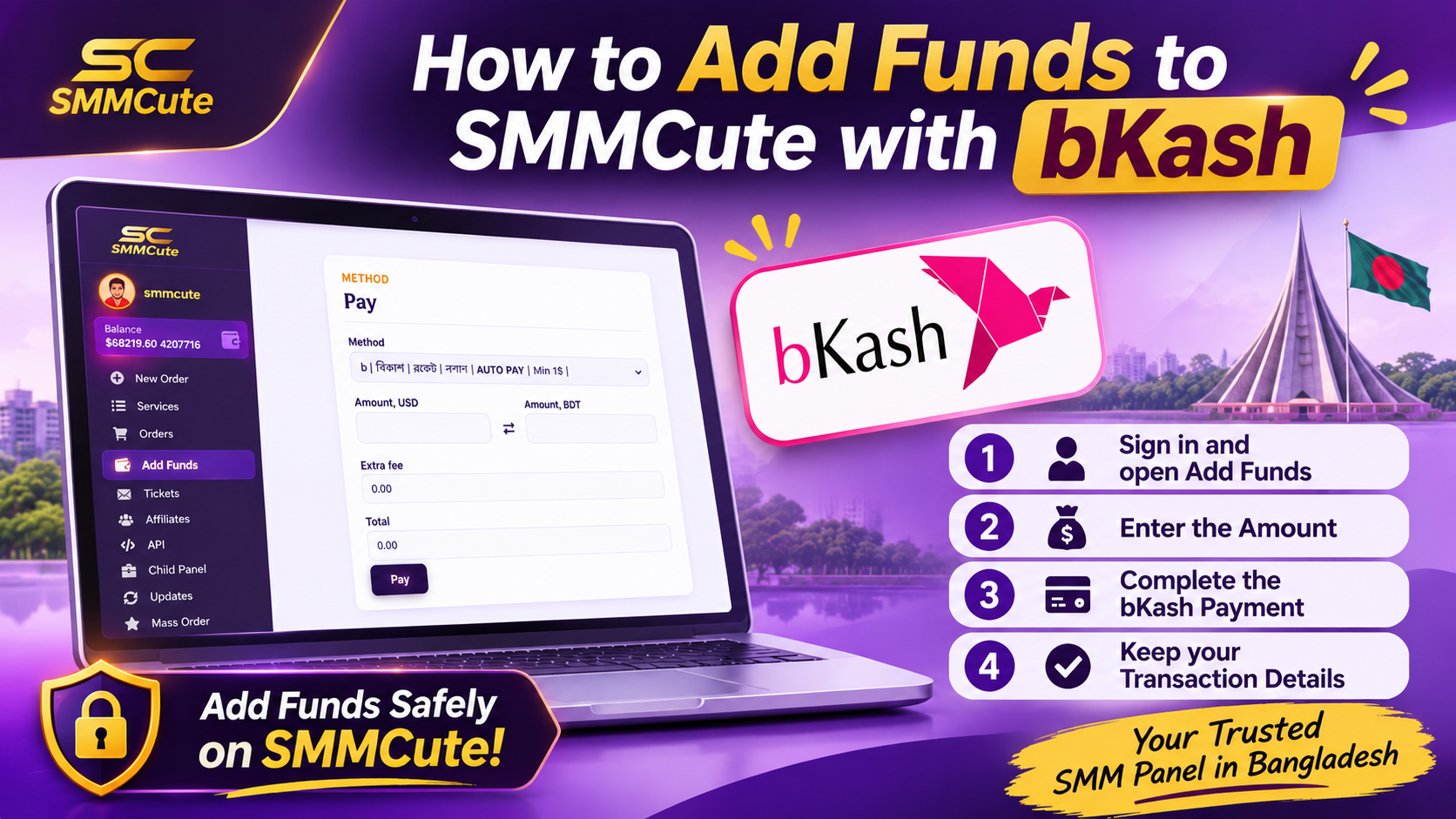
How to Add Funds to SMMCute with bKash
If you use bKash, you can add money to your SMMCute balance through the payment option shown on your account’s Add Funds page. The page displays the amount in USD and BDT, along with any extra fee and the total to pay. Review those figures before you continue.
1. Sign in and open Add Funds
Go to the SMMCute sign-in page. After signing in, open Add Funds from your account menu.
Check the payment methods currently listed. Choose the option that includes bKash and read its instructions before making a payment.
2. Enter the amount
Enter your deposit amount in the Amount, USD field. The page should show the corresponding Amount, BDT and display any extra fee and the total.
Check all four figures before paying:
- Amount in USD
- Converted amount in BDT
- Extra fee
- Total amount due
If anything looks wrong or the amount does not update, pause and contact support before submitting the payment.
3. Complete the bKash payment
Select Pay and follow the instructions shown for that payment option. Depending on the checkout flow, you may be sent to a payment page or shown further instructions.
Use the payment action requested on the screen. Payment and Send Money are different bKash services, so don’t choose one based on guesswork. Follow SMMCute’s displayed instructions. bKash describes Payment as paying a seller for a product or service, and Send Money as transferring funds to another account. See bKash’s service descriptions.
Never share your bKash PIN or one-time code with anyone. Enter them only in the official bKash app or payment flow.
4. Keep your transaction details
After completing the payment, save the transaction ID and confirmation. Return to SMMCute and check your balance or deposit history.
Adding funds and placing an order are separate actions. Once your balance is credited, browse the available SMMCute services and place an order from your account.
If your SMMCute balance hasn’t updated
Check the payment status and follow any processing time stated on the Add Funds page. If the payment shows as successful but your balance is still unchanged after that time, contact SMMCute support with:
- Your SMMCute username
- The amount paid
- The approximate payment time
- Your bKash transaction ID
Do not send your password, bKash PIN or one-time code. Avoid paying again while the first transaction is unresolved.
Before you pay
Confirm that you selected the bKash option shown in your account, entered the amount you intended, checked the BDT conversion and fee, and followed the current on-screen instructions. If the instructions on your Add Funds page differ from this guide, follow the instructions displayed in your account.