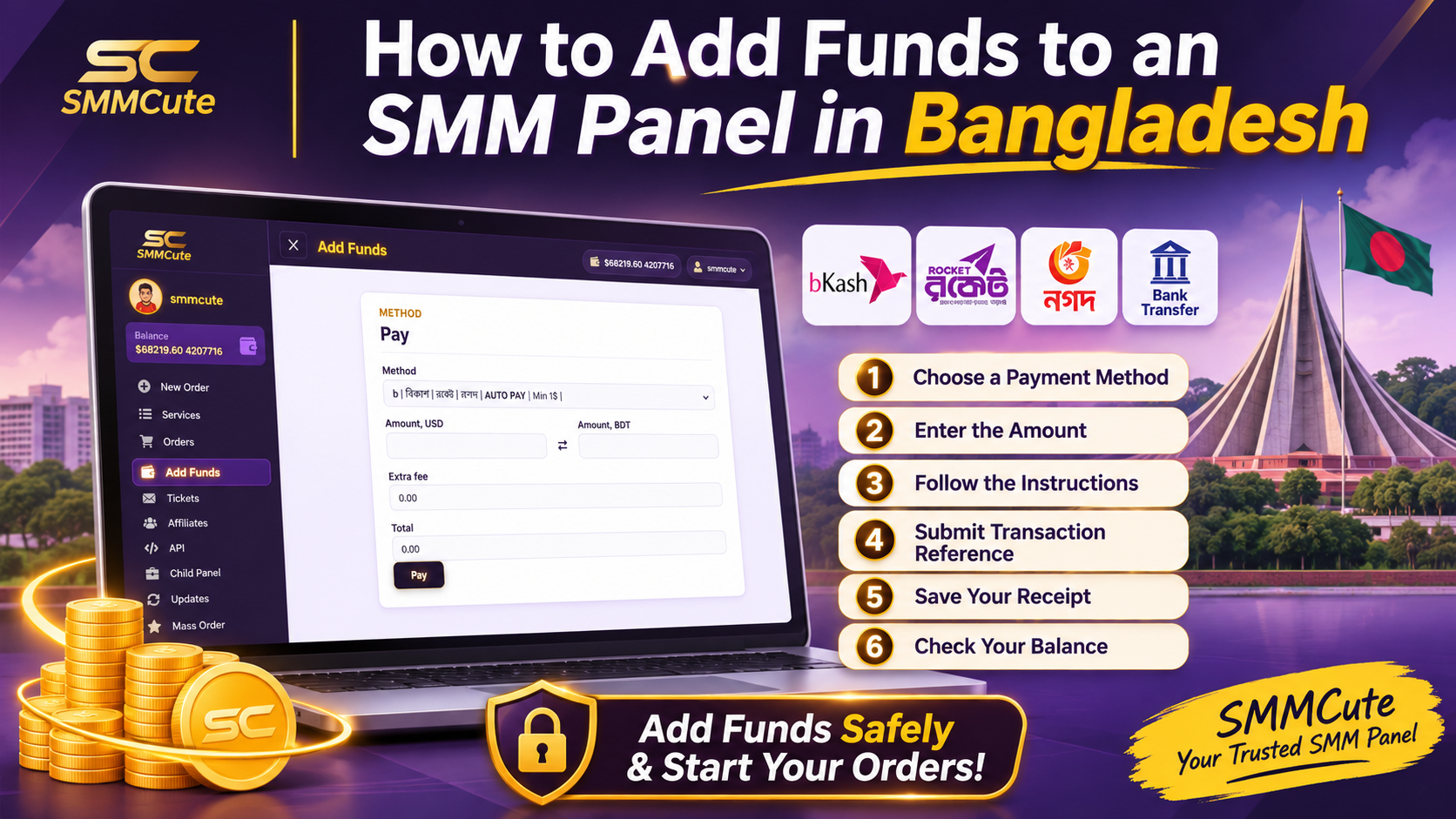
How to Add Funds to an SMM Panel in Bangladesh
Before placing an order on an SMM panel, you usually need to add money to your account balance. This is often called adding funds, making a deposit or topping up your balance.
On SMMCute, start by signing in and opening the Add Funds page. The payment methods and instructions displayed in your account are the ones to follow, since available options and steps can differ.
Before you add funds
Open the SMMCute sign-in page and log in to your account. Then go to Add Funds and review the information shown for your chosen payment method.
Check the minimum deposit, currency, any listed fee and whether the payment is processed through a payment page or requires you to submit a transaction reference. Don’t rely on old instructions from another website or a previous deposit; follow the current instructions shown in your account.
Steps to add funds
- Choose an available payment method. Select one of the methods displayed on your Add Funds page.
- Enter the amount. Check the minimum amount and currency before continuing. Review any fee or total displayed.
- Follow the payment instructions. If the page redirects you to a payment provider, complete the payment there. If it asks you to make a transfer manually, use the recipient details shown on the page.
- Submit the requested payment reference. If the page asks for a transaction ID or similar reference, enter it exactly as it appears in your payment confirmation.
- Keep your receipt or transaction ID. Save the confirmation until the deposit appears in your SMMCute balance.
- Check your balance or deposit history. Confirm the deposit has been credited before placing an order.
What if the deposit is pending?
First, check the payment status and the processing time shown on the Add Funds page. A payment confirmation from your provider does not always mean the panel balance has already updated.
If the payment is confirmed but the balance has not changed after the stated processing time, contact SMMCute support. Include your SMMCute username, payment method, amount, approximate payment time and transaction ID. These details help support identify the deposit.
Never send your account password, payment PIN or one-time verification code. Support may need the transaction reference, but should not need your secret login or payment credentials.
If a payment is still being checked, avoid submitting it again until you know what happened to the first transaction.
What happens after your balance is credited?
Adding funds puts money in your account balance; it does not place an order automatically. Once your balance is available, browse the services, choose one that fits your needs, and read its description before ordering.
Check the required profile or post link, minimum and maximum quantity, delivery information and any refill or cancellation terms. Then sign in to place your order and review the order details before submitting.
Add funds safely: a quick checklist
Before you finish, make sure you have:
- Chosen a payment method currently listed in your account
- Followed the instructions for that specific method
- Checked the amount, currency and recipient details
- Saved the transaction ID or payment receipt
- Confirmed the funds appear in your account before ordering
Payment methods and processing steps can change. If an instruction in this article differs from the current Add Funds page, follow the instructions shown in your SMMCute account.